

How you know you’ve sold something
New orders appear on your Overview as Shipment needed tasks and under Orders with the status Awaiting Shipment. You also get a notification.Ship an order
1
Add a pickup address (first time only)
Save at least one address in Account settings → Saved Addresses. The shipping form uses it.
2
Open the order
Click the order in Orders, or Arrange shipment on your Overview.
3
Fill in pickup details
Under Create Wakilni shipment, choose your pickup address, then check the pickup contact, phone, Wakilni area, floor, building and directions.
4
Drop a pin
Tap the map at your pickup location, or click Use my location.
5
Activate
Click Activate Wakilni shipment. You see Wakilni shipment activated.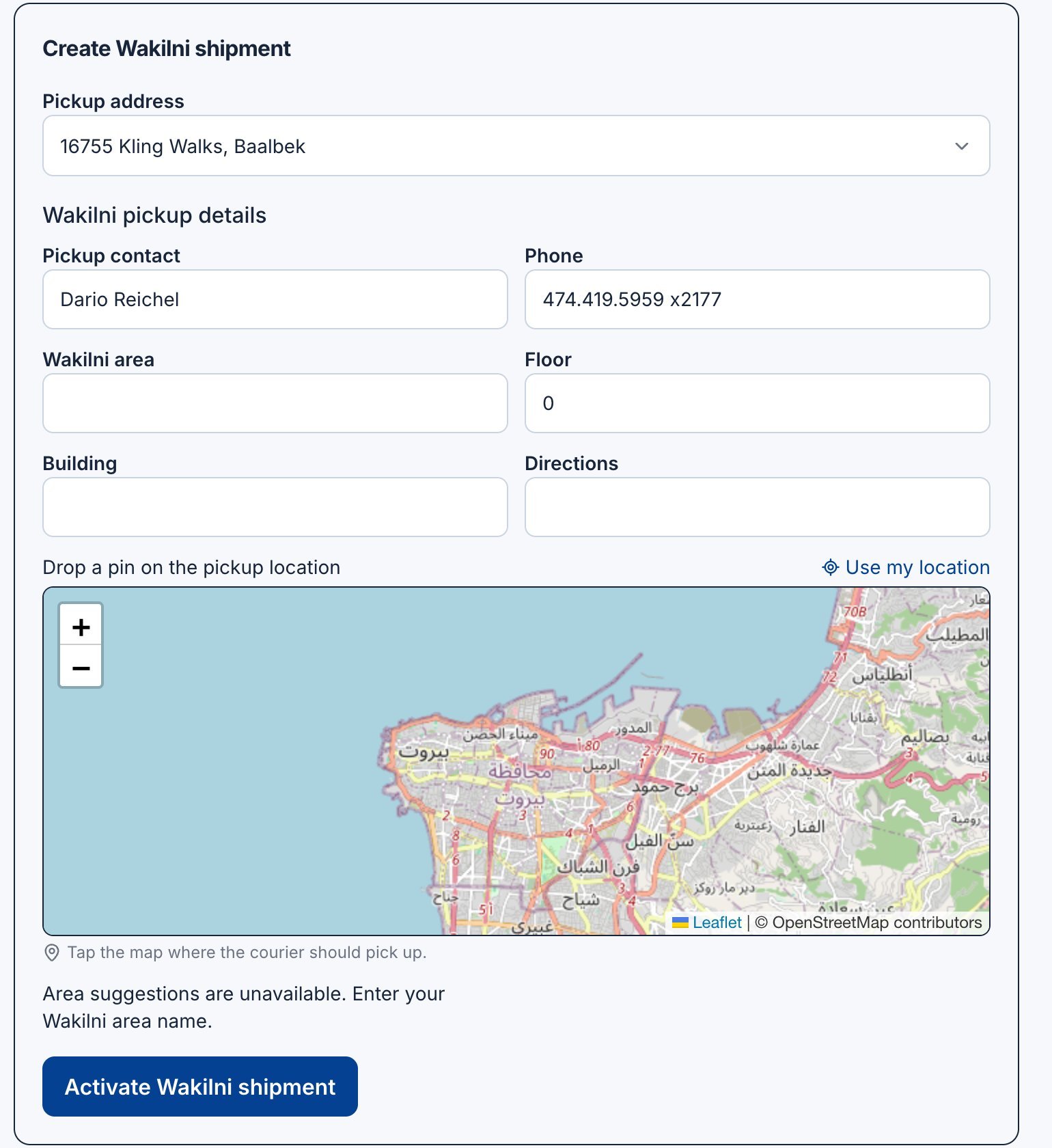
6
Label and hand over
Click Show shipping label, attach it to the parcel, and hand it to the courier.
After pickup
The order moves to Shipped once Wakilni reports it in transit, then Delivered. Click Refresh tracking for the latest update. The buyer then confirms receipt and the order is Completed.Warehouse route for verified items
If the buyer added verification or cleaning, the parcel goes through the Souqna warehouse:- Leg 1: you to the warehouse. No cash is collected.
- The team checks the item.
- Leg 2: warehouse to the buyer. The buyer pays on this delivery.
Ship on time
Buyers see your dispatch estimate, based on the schedule in Selling availability. Your Overview flags orders as Dispatch expected soon or Dispatch estimate passed. Ship within the timeframe you promise; late or wrong items lead to disputes, and lost disputes add strikes.Only the buyer can cancel an order, while it is Pending Checkout or Awaiting Shipment. If you can’t fulfil an order, contact support.